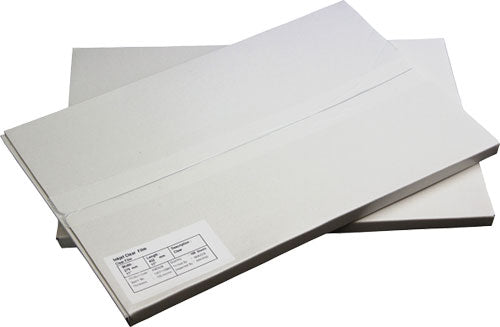
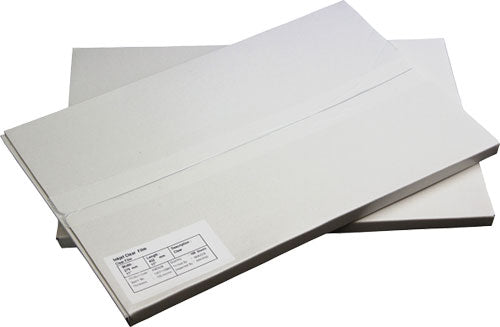
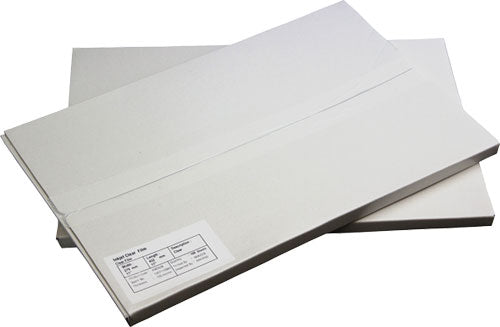
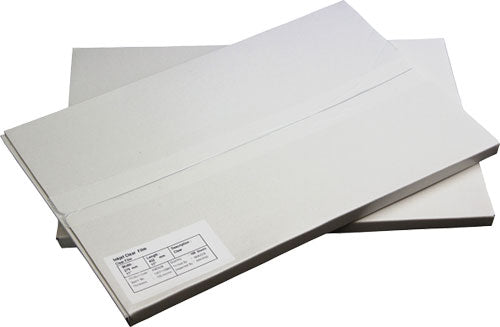
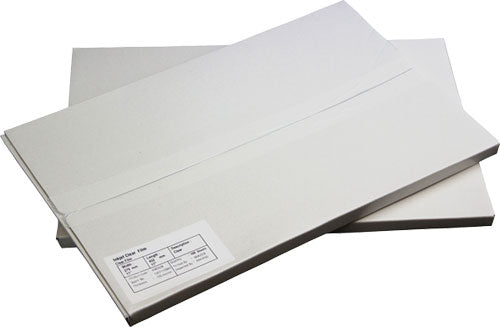
Inkjet transparency film is a clear polyester sheet with a micro-porous coating on one side. That coating absorbs pigment or dye ink on contact and locks the image in place, producing a film positive with solid, deep black image areas and clear transparent areas. The black areas block UV light during screen exposure while the clear areas let light harden the emulsion, creating a crisp stencil.
Regular transparent paper and overhead transparencies don't absorb ink well, so they smudge on contact and produce poor screen printing positives. Waterproof inkjet film holds ink in place even in humid conditions, keeping the printed image sharp from printer to exposure unit. Note that waterproof transparency films have a slightly milky appearance, which is normal and doesn't affect screen exposure.
How to Use Inkjet Transparency Film for Screen Printing
Start by identifying the coated side of the film. Both sides of inkjet transparency film are distinct: the coated side has a slightly textured, matte feel, while the carrier side is smooth. A quick way to find the correct side is to dampen a fingertip and touch each surface. The coated side feels sticky. Load the film into your inkjet printer with the coated side facing the printhead.
Set up your artwork at 300 DPI and convert all colors to 100% black for maximum opacity. If your design includes halftones, a screen frequency around 45 to 55 lines per inch is a good starting point for most mesh counts. Print the film positive, then allow 5 to 15 minutes of dry time before handling. Don't stack wet transparencies or touch the printed image area until the ink has fully set. Once dry, place the positive against a coated screen for UV exposure.
Best Printer Settings for Printing Screen Printing Positives on Transparency Film
Open your printer driver and change the quality setting to the highest available option, often labeled "Best" or "High Quality Photo." Set the paper type to "Premium Glossy Photo Paper" or a similar high-ink-volume profile. This tells the printer to lay down the maximum amount of ink at its highest resolution, which directly increases the density of the black printed areas on the film.
For greater density, many screen printers use RIP (raster image processor) software that converts all ink channels to black and controls the droplet weight. An all-black ink system paired with RIP software can print at 720x720 DPI with enough density to block UV light in a single pass. Without RIP software, the standard printer driver at its highest quality setting still produces usable positives for spot-color and simple halftone work. Pigment-based inks deliver higher UV-blocking density than dye-based inks, so choose pigment when your printer supports it.
Benefits of Using Waterproof Inkjet Film
Dense, Opaque Blacks for Clean Screen Burns
The micro-porous coating on this matte inkjet film absorbs a heavy ink load without feathering, delivering the density needed for a clean stencil. The film holds that density across spot colors, halftones, and fine line work.
Fast-Drying and Smudge-Resistant
The coating absorbs ink almost instantly, cutting dry time from the 10 to 15 minutes you'd wait with uncoated transparencies down to a few minutes. You can pull a printed sheet from the printer and move it to the exposure unit without smearing the image.
Waterproof in Humid Shop Conditions
Moisture can ruin an unprotected film positive before it reaches the screen. Waterproof transparency films resist humidity so the ink doesn't reactivate or smear after drying. That resistance also protects stored transparencies between jobs, letting you reuse a film weeks later for a reburn without quality loss.
How to Choose the Right Size or Format
Sheets vs. Rolls
Cut sheets are the go-to for desktop inkjet printers. The 8.5 x 11 waterproof inkjet film fits any letter-size printer and works for smaller designs and test prints. Step up to the 11 x 17 inkjet film or 13 x 19 inkjet film when your artwork needs more area, and use the 17 x 22 inkjet film for oversized positives. The 8.5 x 14 inkjet film covers legal-size layouts.
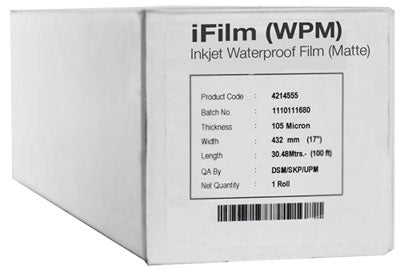
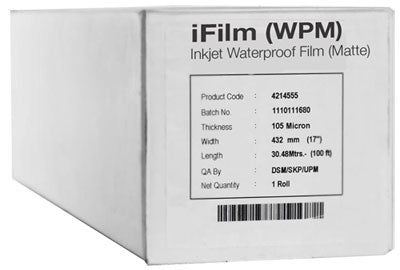
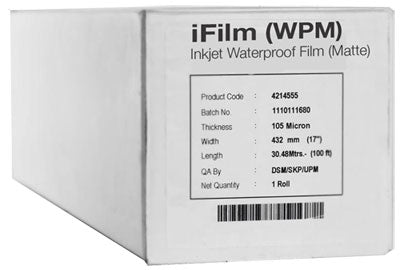
Rolls suit shops with a wide-format inkjet printer that feeds continuous film. The 17" x 100' roll fits 17-inch printers, the 24" x 100' roll handles mid-size Epson and Canon wide-format models, and the 44" x 100' roll is sized for the largest wide-format inkjet printers in production screen shops.
Matte vs. Gloss Inkjet Film
Both matte and gloss transparency films use the same micro-porous coating and produce comparable ink density. Matte film has a textured, non-reflective coated side that's easy to identify by touch, helping you load the correct side every time. Some printers find that the matte surface grips rollers better than gloss. If you'd prefer a gloss finish, see our gloss waterproof inkjet film collection.
Troubleshooting Common Issues with Inkjet Transparency Films in Screen Printing
Smudging or smearing is usually caused by printing on the wrong side of the film or not allowing enough dry time. Always print on the coated side (the sticky side in the finger test) and let the film dry completely before stacking. If your blacks look gray or washed out, check that your printer is set to the highest quality mode with a glossy photo paper type selected. Low-density prints can also result from a nearly empty ink cartridge.
If the film jams or won't feed, load only a few sheets at a time and confirm the film is stored flat. Curled or warped film from improper storage won't feed correctly. Remember that inkjet transparency film should never be used in a laser printer, because the fuser heat will melt the polyester base and damage the machine.
Where to Buy Inkjet Transparency Film for Screen Printing
Every sheet and roll in this collection is in stock and ships free to the contiguous 48 states. If your screen printing workflow needs compatible ink, our inkjet inks collection stocks pigment and dye formulations for popular inkjet printers. For laser film options, see our Star Clear laser film or frosted paper for printing. Browse the Spinks offset and screen printing inks collection for screen printing ink, and visit our screen printing materials and supplies page for related items. For orders or questions, contact us at 860-516-6393 or info@printingsuppliesdirect.com.
Frequently Asked Questions